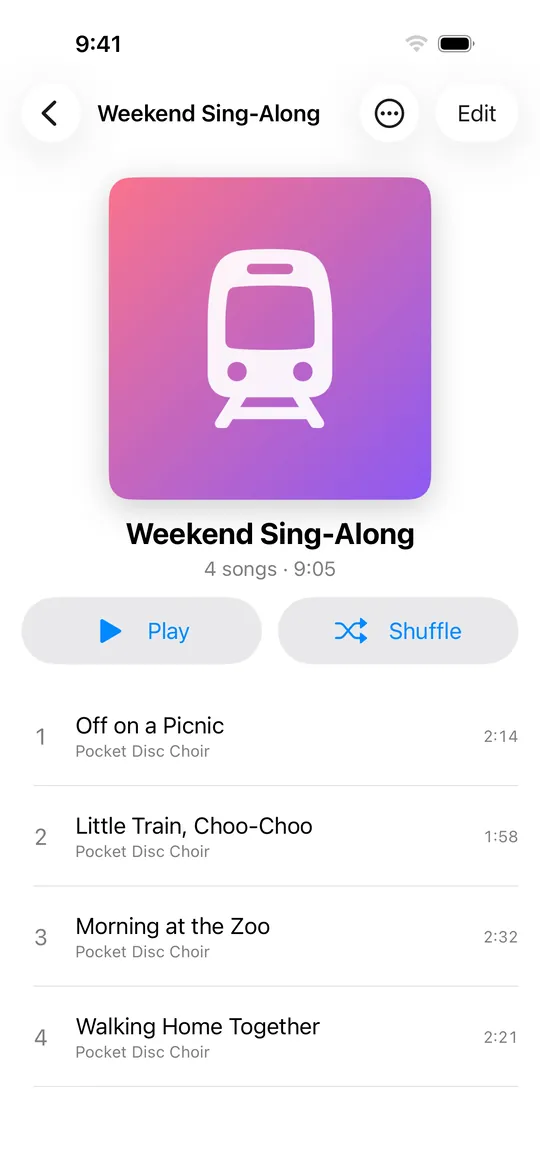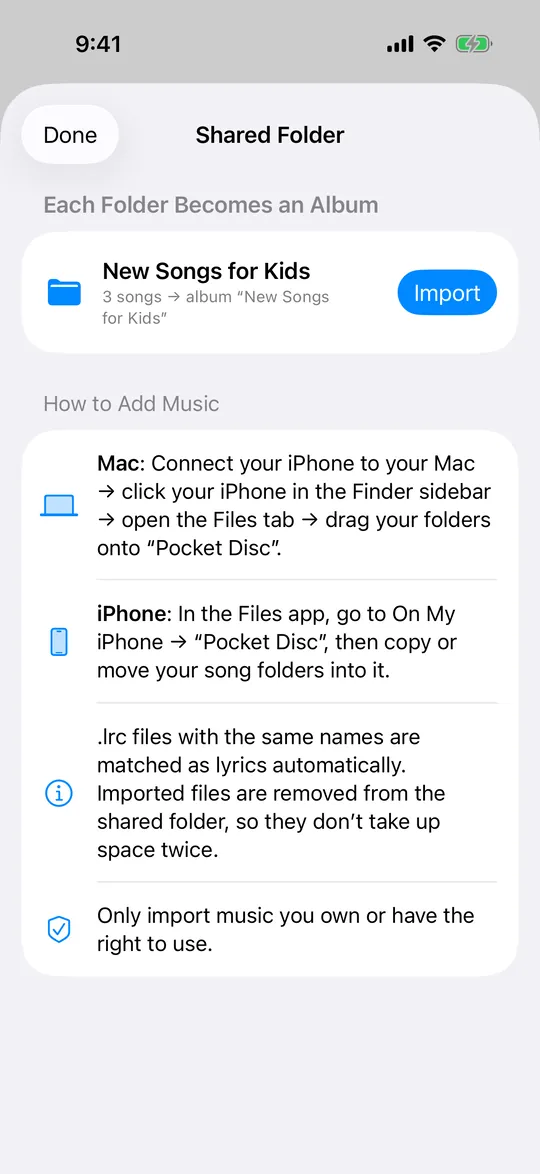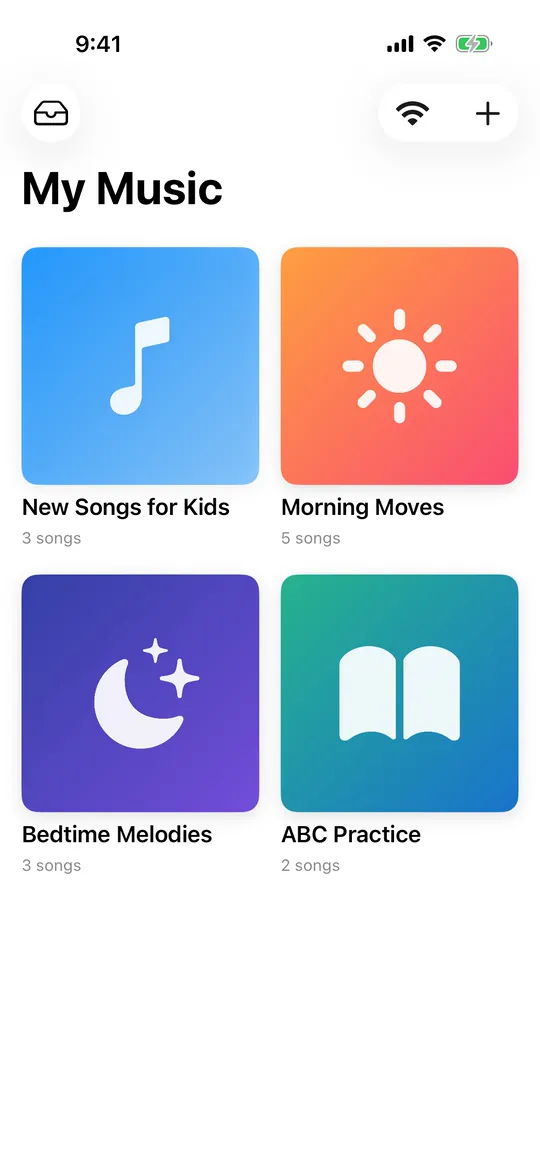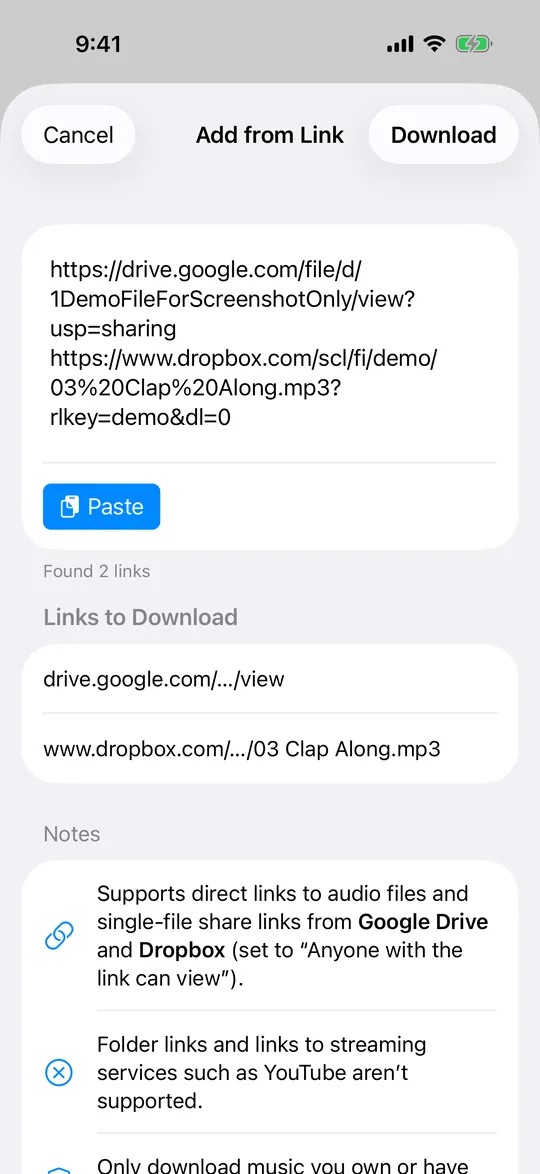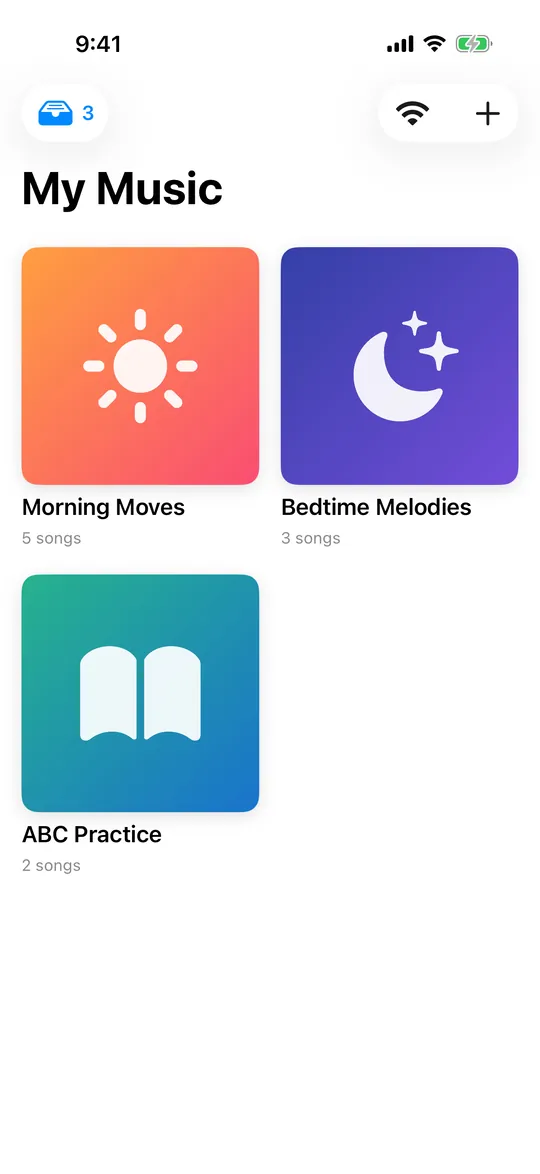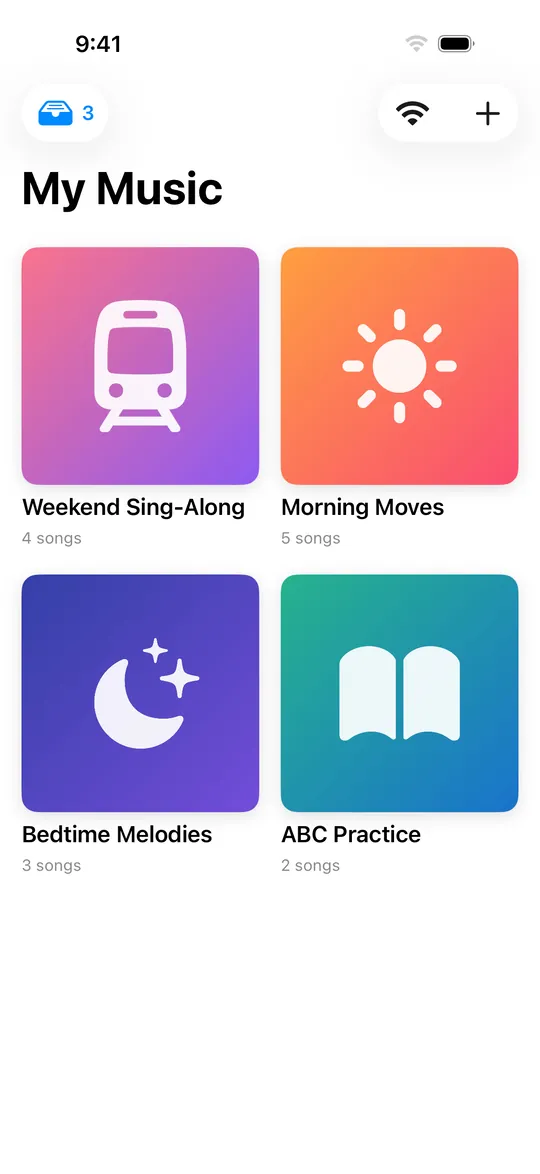




A family music box for iPhone and iPad

Your own music,even offline

Turn your own recordings and songs from your CDs into albums on your iPhone. Play them on the train, abroad, or anywhere with no signal, and send whole albums to your family with AirDrop.

Get Pocket Disc free

Scan with your iPhone camera

  • Free, no monthly fee
  • No account needed
  • No personal data collected

Why Pocket Disc

Streaming apps play their catalog.Pocket Disc plays yours.

Recordings of your kids singing, audio for class, and old favorites from your CDs don’t fit in a streaming app. Pocket Disc organizes them into albums on your phone, ready to play.

Plays offline

No signal, still playing

It isn’t streaming, so there’s no buffering and no cellular data. On a plane, in a tunnel, or camping in the mountains, just open the app and play.

  • No internet neededYour music files are stored on your phone, and playback never goes online.
  • Keeps playing on the Lock ScreenIt keeps playing in the background, and repeat and shuffle are each one tap away.
  • Play on HomePod at homeTap AirPlay at the bottom right of Now Playing to send music to a HomePod or speaker.
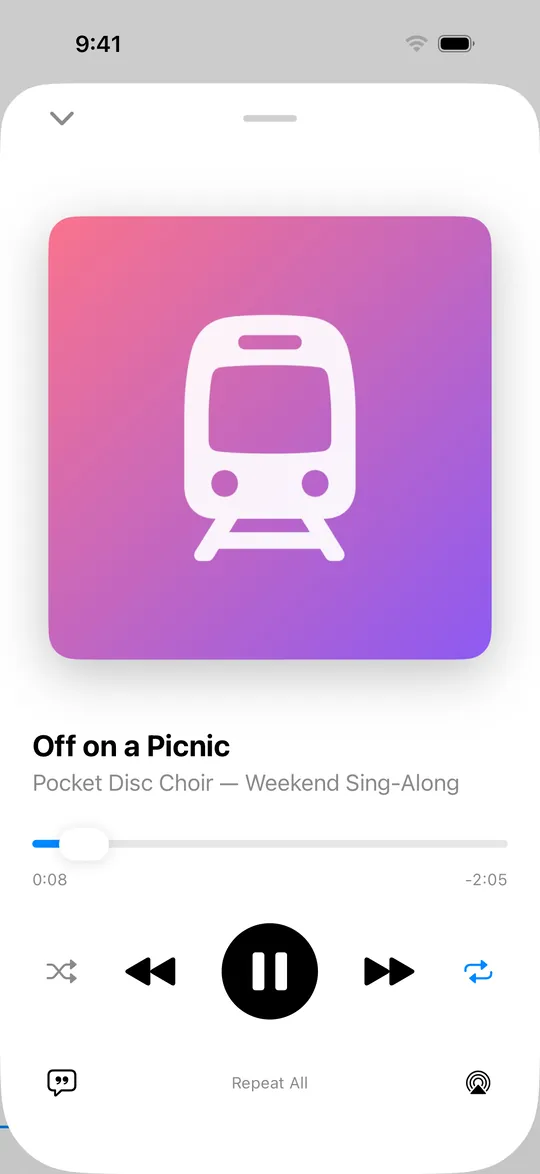
With no Wi-Fi or cellular signal in the status bar, the app is still playing “Off on a Picnic”

Share with family

Send whole albums to your family

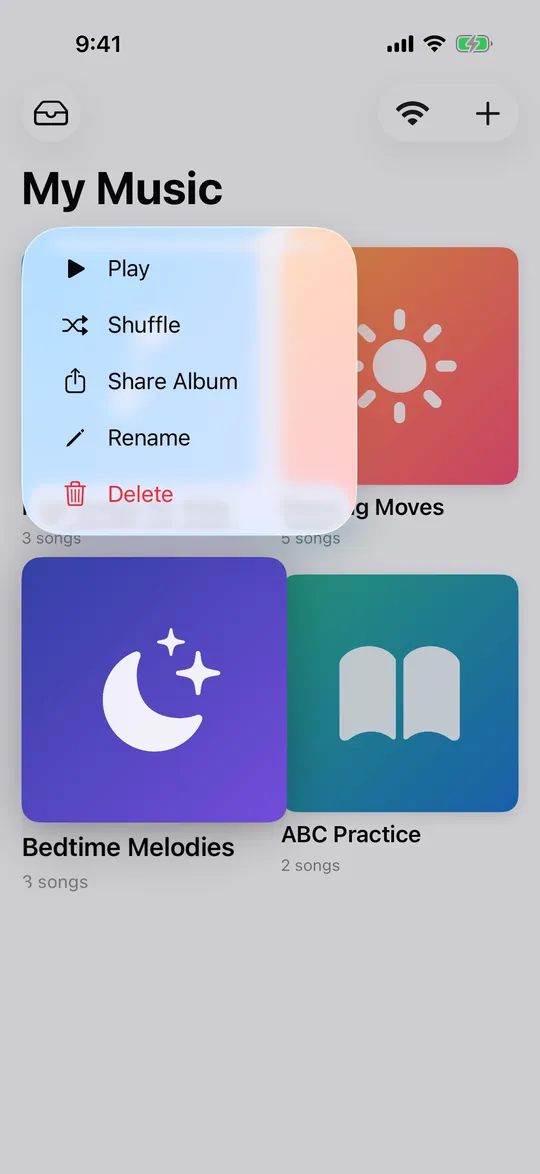
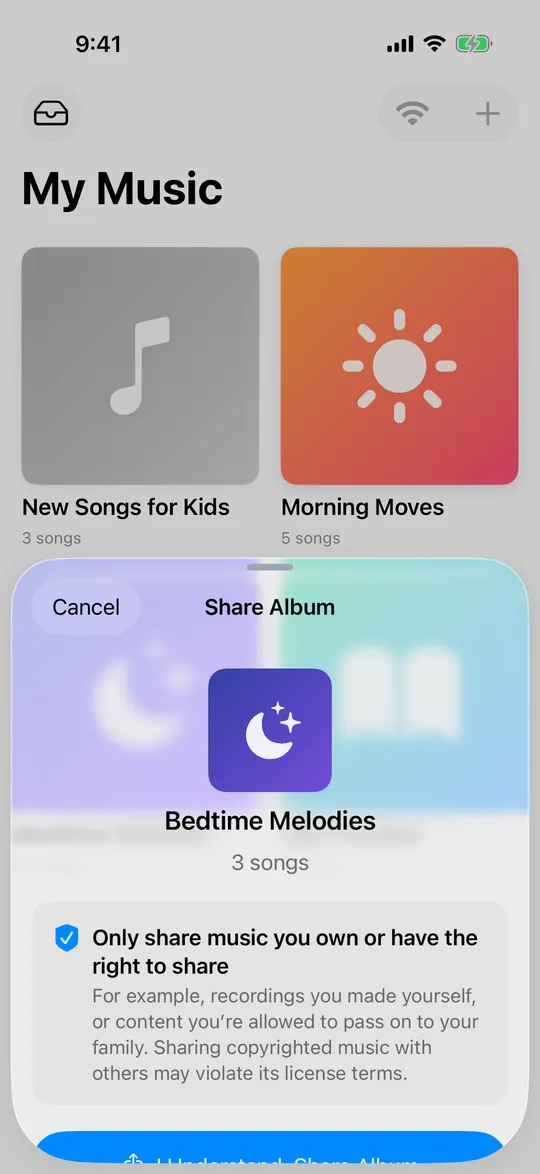
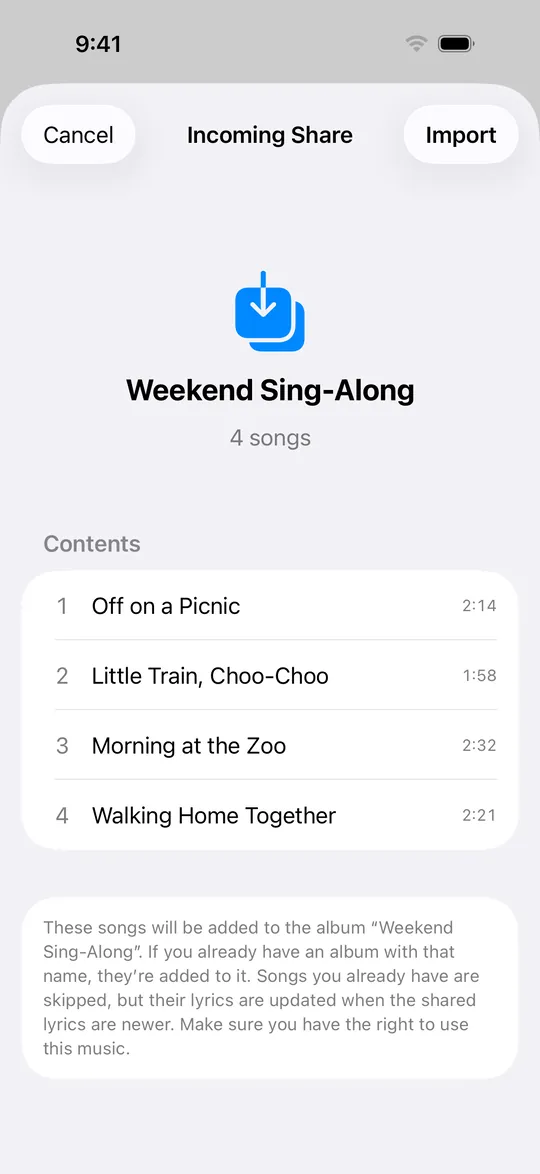
No need to send songs one by one or teach your family how to organize them. Touch and hold an album, choose Share Album, confirm it’s music you have the right to share, then send it with AirDrop. Your family member taps Import and gets the whole album, in order.

  • Track order, artwork, and lyrics come alongThe album they receive looks just like yours.
  • Duplicate songs are skippedSongs your family already has won’t be added twice.
  • Share with people who don’t have the appTouch and hold a song, choose Share, then tap I Understand, Share Audio File to send it as a regular audio file.
  • AirDrop works without the internetJust bring the two phones close together, in the car or in a classroom.

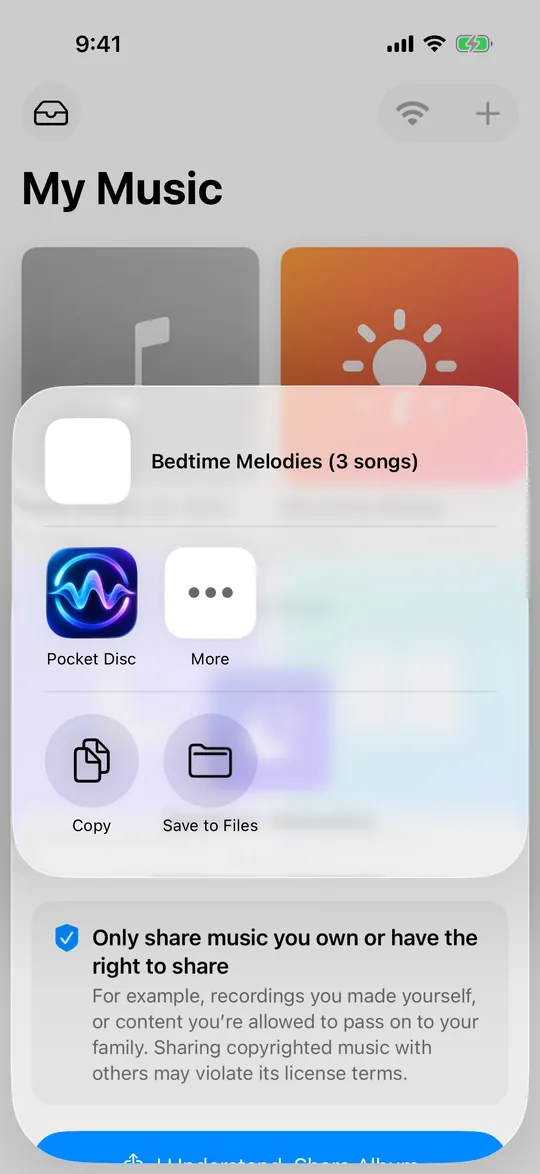
Before you share, the app reminds you to share only music you own or have the right to share.

The menu that appears after touching and holding an album, including Share Album
1Touch and hold an album, choose Share Album
The confirmation screen before sharing, reminding you to share only music you own or have the right to share
2Confirm, then choose AirDrop
The Incoming Share screen on the recipient’s phone, showing the album name and four songs
3Your family taps Import

Works with Windows too

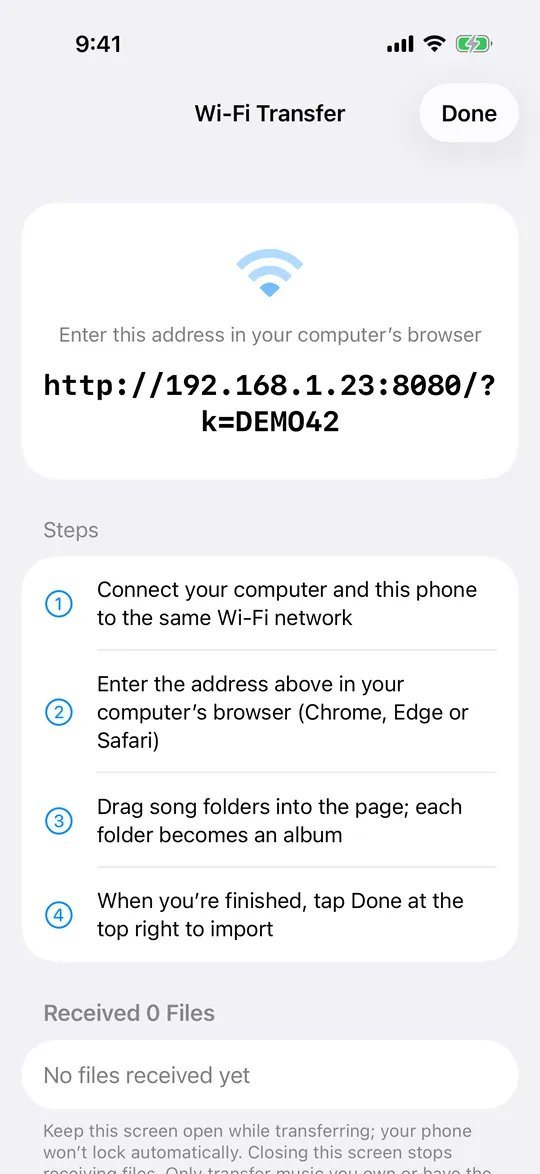
Open Wi-Fi Transfer on your phone, then drag folders into your computer’s browser. No software to install, no cables.

One folder, one album

The folder name becomes the album name. Tap Import and it’s in order, with matching .lrc files added as lyrics.

Organize your way

Make albums by class, mood, or your child’s age. Change covers, rename albums, and drag to reorder tracks.

No account, no monthly fee

Download it and start listening without signing up. Your music stays on your phone and is never uploaded.

Organize it once. The whole family listens, even without internet.

How it works

Add it, send it,and your family listens offline

Three steps, from your computer to your family’s iPhone. The demo plays on its own, or tap a step to jump to it.

  1. 1Add music

  2. 2Send it to family

  3. 3Your family listens offline

Add music

Five ways to add your music

Use an iPhone, a Mac, or a Windows PC, or paste a share link from a cloud drive. Once your music is in, you can play it offline and share it with family.

Windows or any computer, with no software and no cables

Drag songs to your phone from a browser

  1. 1Connect your computer and phone to the same Wi-Fi networkYour home Wi-Fi works.
  2. 2Tap the Wi-Fi icon at the top right of My MusicYour phone shows an address. The first time, allow Local Network access.
  3. 3Enter that address in your computer’s browserChrome, Edge, and Safari all work.
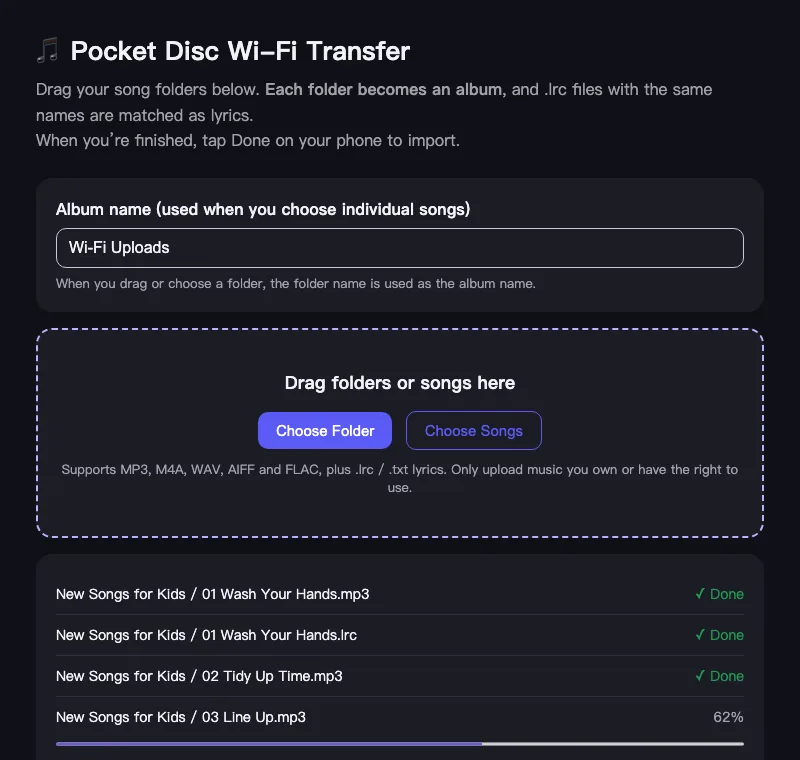
  4. 4Drag your song folders onto the pageEach folder becomes an album. When the upload finishes, tap Done on your phone, then Import.
The upload page in a computer’s browser, showing the progress of each song
The upload page on your computer

Real screens

Screenshots from the app

The demo above recreates the app on the web. These are real screenshots from the app.

FAQ

Before you download

Have another question? Write to us:

Can I really listen without internet?

Yes. Your music files are stored on your phone, so playback never needs a connection, even in Airplane Mode. You only need a connection to add music: Wi-Fi Transfer needs your computer and phone on the same Wi-Fi network, and Add from Link needs internet access.

Do I need to pay or sign up?

No. Pocket Disc is free to download, with no account to create and no monthly fee. Install it and start organizing your music.

What music can I add, and who can I share it with?

Pocket Disc is a player for your own music, and the app doesn’t provide any music. Please add only music you own or have the right to use, such as your own recordings or songs imported from your CDs. Before you share music with your family, make sure its license allows it. The app also reminds you before you share.

Can I download songs from YouTube or Spotify?

No. Add from Link is only for files you own or have the right to use, such as music files stored in Google Drive or Dropbox. Content on streaming services such as YouTube and Spotify is protected by their terms of use, so the app rejects these links.

Does sharing an album need the internet?

Not with AirDrop: just bring the two phones close together. You can also send the shared file with Messages or another messaging app, or save it with Save to Files.

What does my family receive?

A file named “Album Name.musicbox” that contains the album’s songs, track order, artwork, and lyrics. They open it with Pocket Disc and tap Import. If they already have an album with the same name, the songs are added to it and duplicates are skipped.

Can I share with someone who doesn’t have the app?

Yes. Touch and hold a song, choose Share, then tap I Understand, Share Audio File. They’ll receive a regular audio file, such as an MP3, that plays in most music players.

Which audio formats are supported?

MP3, M4A, AAC, WAV, AIFF, FLAC, and CAF. Lyrics files in .lrc or .txt format are supported too: put each one in the same folder as its song, with the same file name, and they’re matched automatically.

Is Wi-Fi Transfer secure?

Your phone receives files only while the Wi-Fi Transfer screen is open, and stops when you close it. The address includes an access code that’s different every time, so other people on the same Wi-Fi network can’t upload without it. Only music and lyrics files are accepted.

Is my music uploaded to the cloud?

No. All your music stays on your phone. The app doesn’t require an account and doesn’t collect any personal data.

Which devices are supported?

iPhone and iPad with iOS 17 or iPadOS 17 or later.

Pocket Disc app icon

Keep your music with you,ready to play anytime

Free to download, with no account and no monthly fee. For iPhone and iPad with iOS 17 or iPadOS 17 or later.

Get Pocket Disc free

Scan with your iPhone camera

Screen recording: see how it works in a minute